UNHANDLED EXCEPTION ERROR
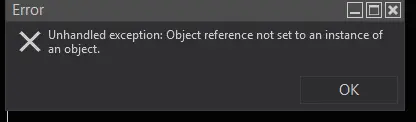
This error is a platform issue related to NT8. NT8 does not know the cause of this error.
There are two reasons for this error:
- Installed indicators or installed add-ons.
- A problem with the NT8 User Interface
- Unfulfilled reference from the Chart template to an indicator that is not present on your machine/platform
What's to do about - Unfulfilled reference from the Chart template to an indicator that is not present on your machine/platform
- Resave the chart template with a new name and use the new template. Resaving template with new name removed reference to an indicator the platform account finds.
If it is a problem with the User Interface, we can try to fix it this way:
1) Let's say you are working on a Workspace named "Name1"
2) Add a new workspace and name it "Empty" - with no charts in it.
3) Close workspace "Name1"
4) Close NT8 with open Workspace "Empty"
5) Restart NT8 with Workspace "Empty"
6) Open Workspace "Name1"
7) Close workspace "Empty"
Sometimes you need to do it 2 times.
If it does not help, and you have other indicators installed on the charts in the Workspace "Name1" that create a problem.
If some indicators and add-ons cause the problem:
- close all indicators on every chart in the workspace,
- Close NT8
- Clean NT platform with NT Optimizer
- Open NT8 with an Empty workspace (no charts) and add a new chart,
- Add only one BOF indicator at a time on the chart.
- Save it to a new Workspace "Name2"
- Notice what actions precede errors and screenshot them. Notice the error in the Control Center Logs.
General recommendations:
- Keep one instrument on one window. If you use a second instrument, use a separate window. Instead of adding new instruments with tabs, keep instruments separately in their own window. This method makes your CPU work more efficiently.
- Clean NT8 at least 1 or 2 times a week with NT Optimizer.
UNHANDLED EXCEPTION ERROR (2)
1) Unhandled Exception error message:
this process cannot access the file c:\users\Documents\NinjaTrader8\_Workspace.xml or UI.xml files
because it is being used by another process
This error indicates that something on Windows is preventing NinjaTrader from accessing its files. Or Windows settings, or Antivirus settings, or folders settings. and it is not the NinjaTrader Platform problem.
Please test for the error after completing each of the possible solutions below:
1. REINSTALL THE NINJATRADER DESKTOP APP
You mentioned that you had already reinstalled the platform, so if you have followed this step, you can move on to the next step.
Reinstalling NinjaTrader won't affect your custom settings.
1) Close all running applications.
2) Do not modify the Documents/NinjaTrader folder.
3) Uninstall NinjaTrader via the Windows Settings menu
4) Navigate to C:\Program Files and delete the NinjaTrader 8 folder if it exists.
5) Reboot your PC.
6) Download and reinstall NinjaTrader.
7) Before restarting, ensure Windows is up to date (Windows Settings > Update & Security). Manually check for updates and reboot if needed.
2. CHECK WINDOWS FIREWALL/ANTI-VIRUS
Ensure your firewall, antivirus, or backup software is not interfering with NinjaTrader by adding exceptions for NinjaTrader in these programs.
3. FOLDER PERMISSIONS
Verify the NinjaTrader Documents folder has proper permissions
1) Navigate to the Documents folder.
2) Right-click on NinjaTrader 8 > select Properties.
3) Ensure Read-only and Hidden attributes are unchecked.
4) When prompted, select Apply changes to this folder, subfolders, and files > click OK.
3. DISABLE CONTROLLED FOLDER ACCESS
1) Press the Windows Key and search for "Controlled Folder Access."
2) Select Controlled Folder Access and turn it off (if enabled).
3) Note: Administrator rights may be required to change this setting. Contact your network/PC administrator if needed.
4) For additional details on Controlled Folder Access, refer to Microsoft's official documentation.
5) If the problem remains, you can fix this problem (I guarantee it) by reseting your windows installation to initial version.
RESET WINDOWS 11 INSTALLATION
( If necceceary) To reset a Windows 11 installation, go to Settings > System > Recovery > Reset this PC, then choose whether you want to "Keep my files" for a refresh or "Remove everything" for a full reinstall, and follow the on-screen instructions to complete the process; make sure to back up your important data before resetting your computer.
Delite/removey/rename NinjaTrader Folders:
- MyDocuments/NinjaTrader8
- c:/Program Files/NinjaTrader 8
Key steps:
- Access Settings: Open the Start menu and click on "Settings".
- Navigate to Recovery: Select "System" then "Recovery".
- Initiate Reset: Click "Reset this PC".
- Choose Option: Select "Keep my files" to keep personal data or "Remove everything" to completely wipe the drive.
- Confirm and Reset: Follow the on-screen instructions to confirm your choice and start the reset process.
Download the latest installation of the NinjaTrader platform from ninjatrader.com and install it. Test this installation before installing any indicators to make sure it works well.
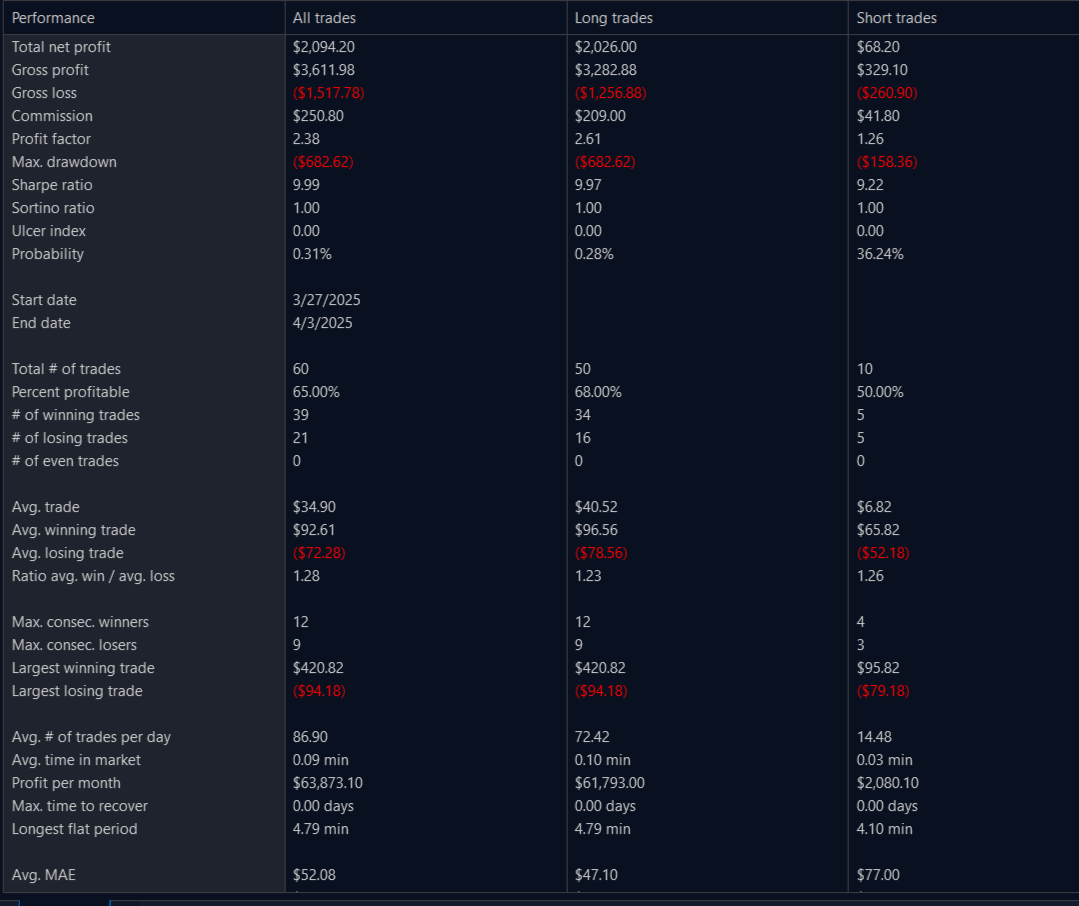
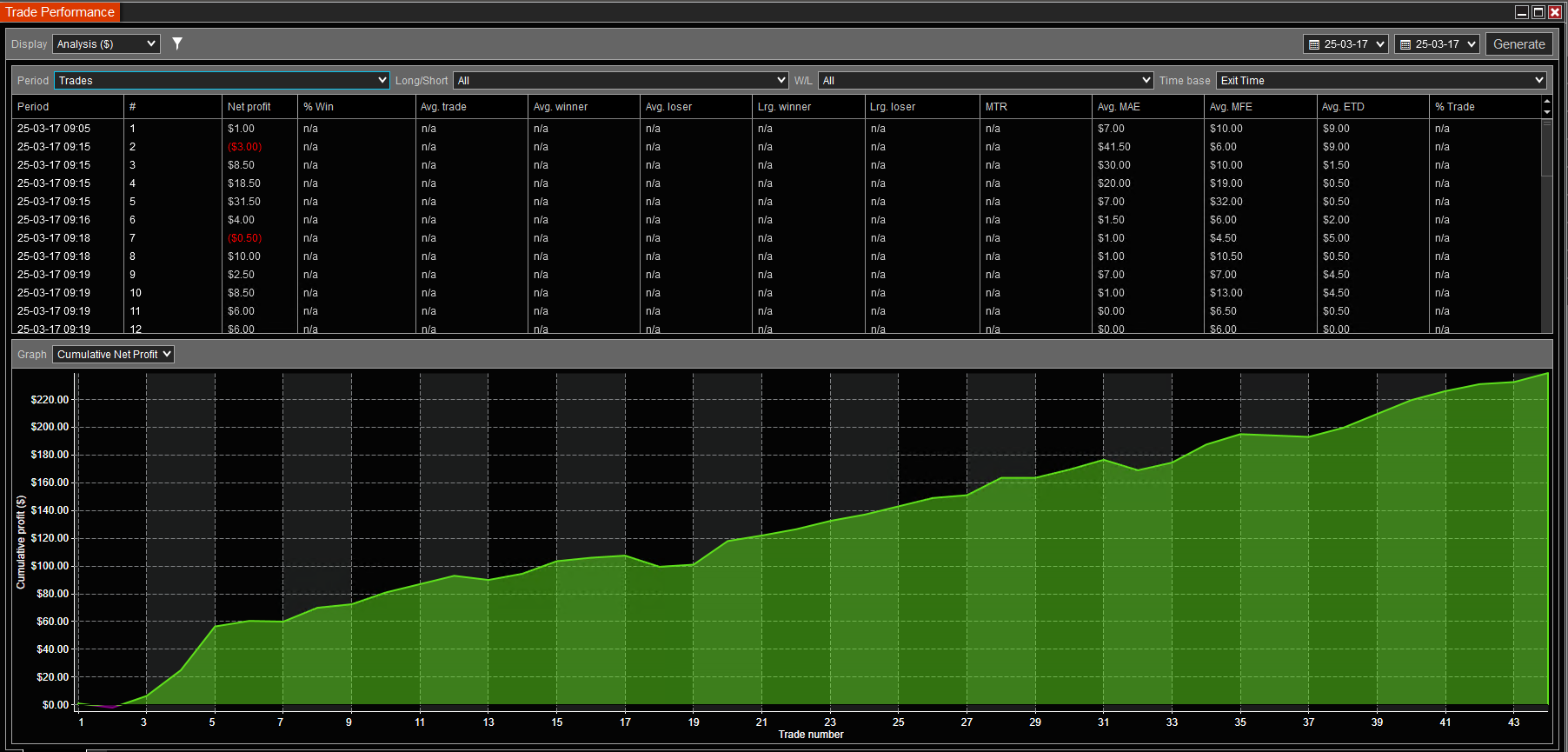
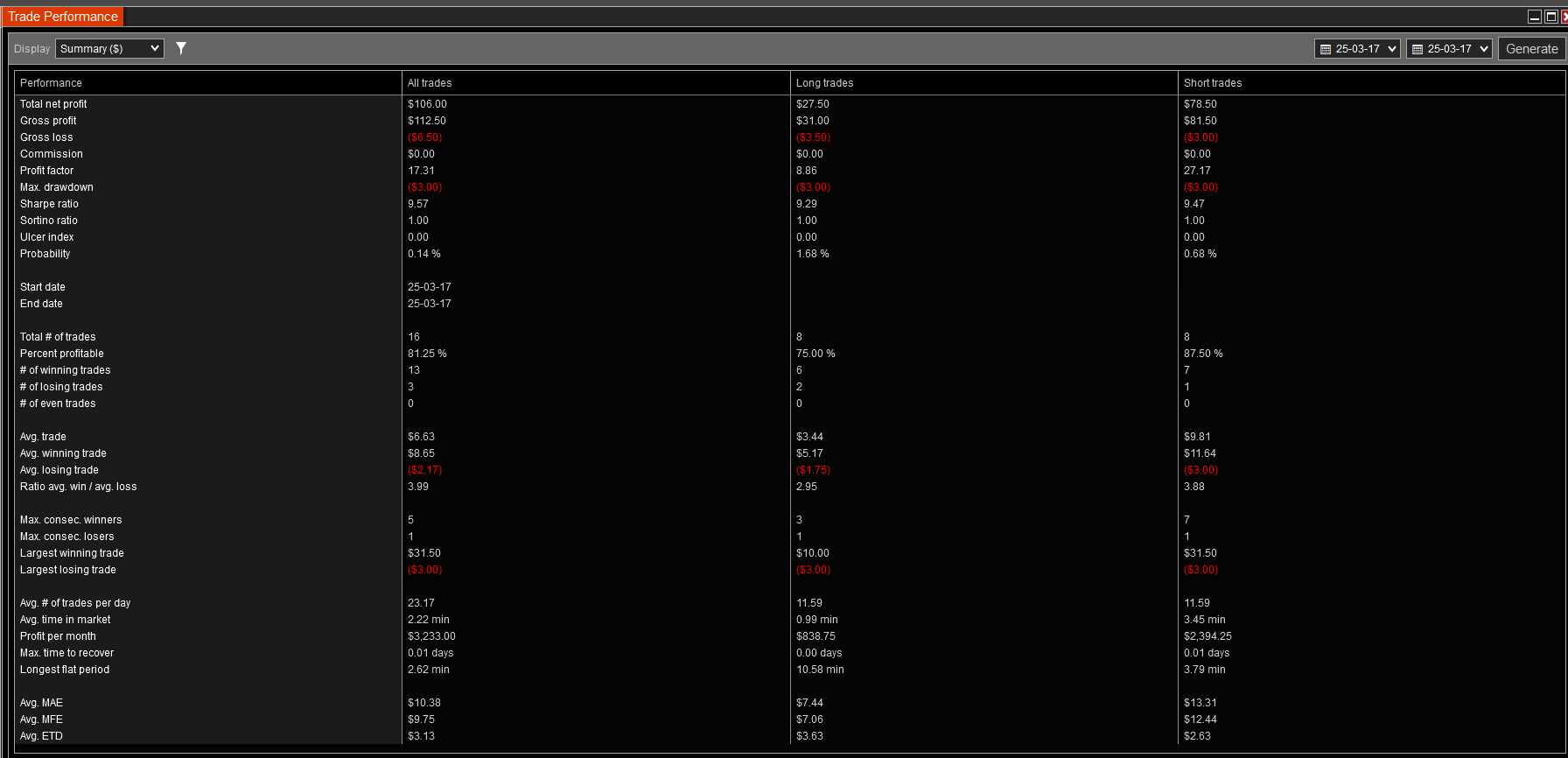
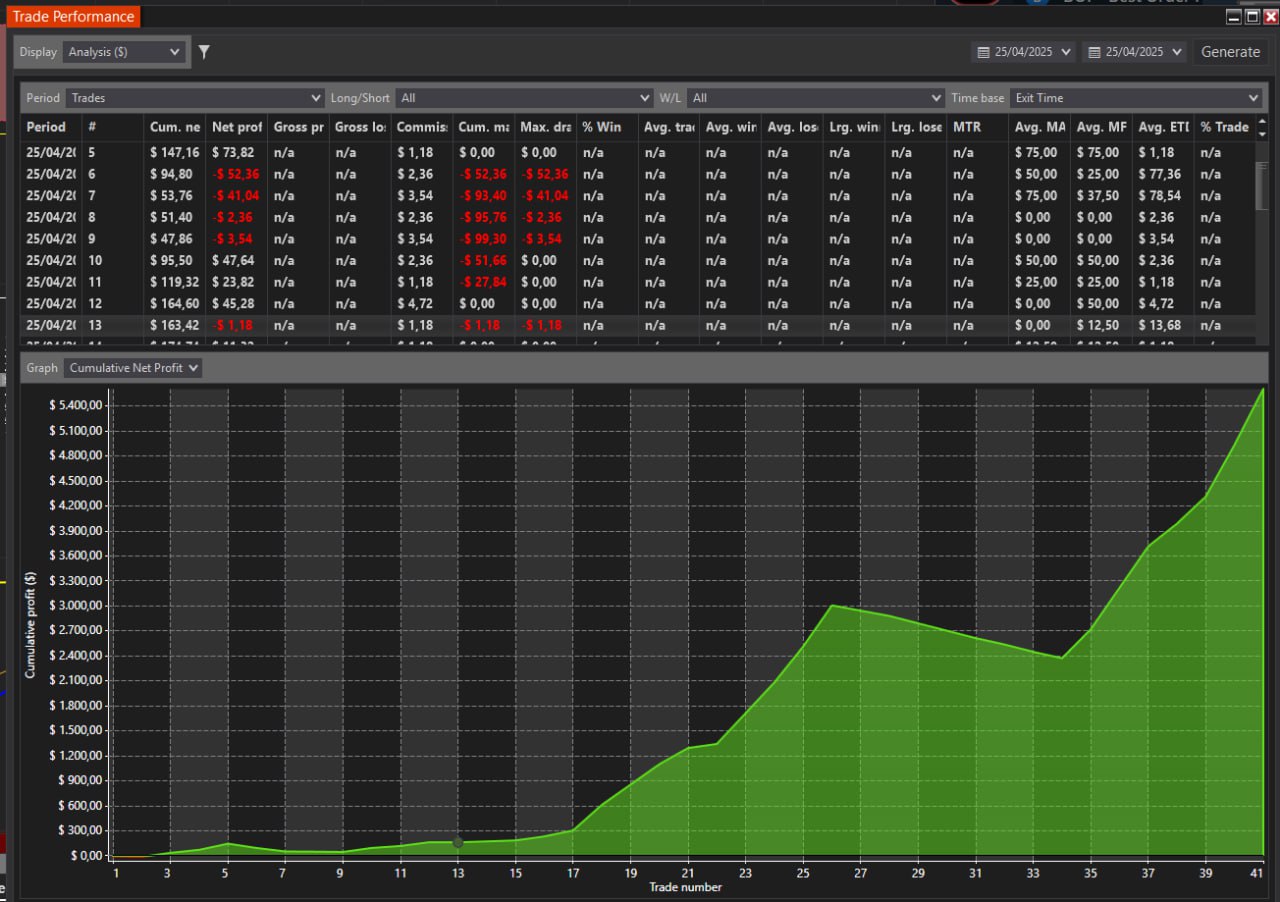
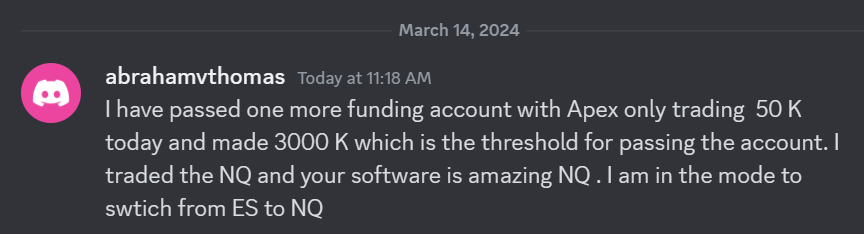 I have passed one more funding account with Apex Trading today and made $3,000, which is the threshold for passing the account. I traded NQ, and the Bestorderflow indicators are excellent for passing props.