1) Exclude Whitelist NinjaTrader folders from all your antivirus security
2) Turn off Windows Defender COMPLETELY during Indicator file installation
Exclude and Whitelist NinjaTrader Folders
How to exclude NinjaTrader files and folders from unintended file removal with one or multiple online security and antivirus programs:
What files and folders must be excluded and whitelisted on your Antivirus and Online Security software on your computer:
Whitelist 3 directories:
1) C:\Program Files\NinjaTrader 8
2) C:\Users\<<Your Username>>\Documents\NinjaTrader 8\bin
3) C:\Users\<<<USERNAME>>\AppData\Local\Temp\7114e8ea-2fd5-46e6-bf7d-b91fb1638ae3
Whitelist this file:
4) C:\Users\<<<USERNAME>>\Documents\NinjaTrader 8\bin\Custom\BofMbo.dll
5) C:\Users\Downloads\<<<USERNAME>>\BOF_MBO_V2_Iceberg.zip ( download installation file from our website)
6) NTOptimizer.zip and NTOptimizer.exe
7) DepositKiller.zip and DepositKiller.exe
Instructions: How to whitelist a directory folder in Windows Defender:
To whitelist a directory in Windows Defender, open the Windows Security app, go to Virus & threat protection, select Manage settings, scroll to Exclusions, and add your folder
Steps to Whitelist a Directory
- Press the Start key, type Windows Security, and open the app.
- Click on Virus & threat protection on the main screen or side menu.
- Under Virus & threat protection settings, click Manage settings.
- Scroll down to find the Exclusions section and click Add or remove exclusions.
- Click Add an exclusion and choose Folder from the drop-down menu.
- Browse to the directory you want to ignore, select it, and click Select Folder
2) Instructions on how to turn off Windows Defender completely
Must turn off Windows Defender completely during Indicator files installation
Method 1:
Using the Group Policy Editor (Windows Pro and Enterprise)
Note: The Group Policy Editor is not available on Windows 11 Home by default.
1. Press Windows + R on your keyboard to open the Run dialog box.
2. Type gpedit.msc and press Enter to open the Local Group Policy Editor.
3. Navigate to: Computer Configuration > Administrative Templates > Windows Components > Microsoft Defender Antivirus (or Windows Defender Antivirus depending on your build).
4. Double-click the setting named Turn off Microsoft Defender Antivirus.
5. Select Enabled to turn the antivirus off.
6. Click Apply, then OK, and restart your computer
Click on this link to see other methods
Don't see instructions for your Antivirus? Type in Google search:
1) How to whitelist/exclude folders in "Your Antivirus name"
2) How to turn off "Your Antivirus name" completely
Some other instructions:
Instructions How to exclude files and folders from BitDefender
Instructions for Norton Symantec
Google's Step-by-step Instructions for exclusion and whitelisting:
To whitelist files or directories, open your antivirus program's settings, find the "Exclusions" or "Exceptions" section, and add the specific file, folder, or file type you want to exempt from scans. The exact steps and menu names will vary by software, but you will generally look for options to manage your exclusion list under security or protection settings to add items that the antivirus should ignore.
General Steps
- Open your antivirus software: Locate and launch the application on your computer.
- Navigate to settings: Find the section for settings, options, or protection areas.
- Locate the Exclusions/Exceptions section: Look for a menu item like "Manage settings," "Exclusions," or "Add or remove exclusions" under the "Virus & threat protection" or similar area.
- Add the exclusion: Click the option to add a new exclusion.
- Select the item type: Choose whether you want to exclude a specific File, a Folder, a File type, or a Process.
- Specify the item: Browse to or type the path of the file or folder, or enter the file type (e.g., "exe") you want to exclude.
- Confirm the addition: Save your settings to add the item to the exclusion list.
Example for Windows Security (Microsoft Defender)
- Open Windows Security: Go to your Start Menu and open Windows Security.
- Go to Virus & Threat Protection: In the app, select Virus & Threat Protection.
- Manage settings: Click "Manage settings" under Virus & Threat Protection settings.
- Add exclusion: Scroll down to the Exclusions section and click on Add or remove exclusions.
- Add the exclusion: Click Add an exclusion and select the type of item (file, folder, file type, or process).
- Specify the item: Select the specific file or folder you want to add, or type the file type, and then click Add.
Step-by-step instructions from Google on how to add Exclusions and white-listing:
https://www.google.com/search?q=how+to+whitelist+files+and+directories+with+antivirus&rlz=1C1CHBF_enUS1159US1159&oq=how+to+whitelist+files+and+directories+with+antivirus&gs_lcrp=EgZjaHJvbWUyBggAEEUYOTIHCAEQIRigATIHCAIQIRigATIHCAMQIRigATIHCAQQIRigAdIBCjE0MTcyajBqMTWoAgiwAgHxBVlu7SFyNeKV8QVZbu0hcjXilQ&sourceid=chrome&ie=UTF-8
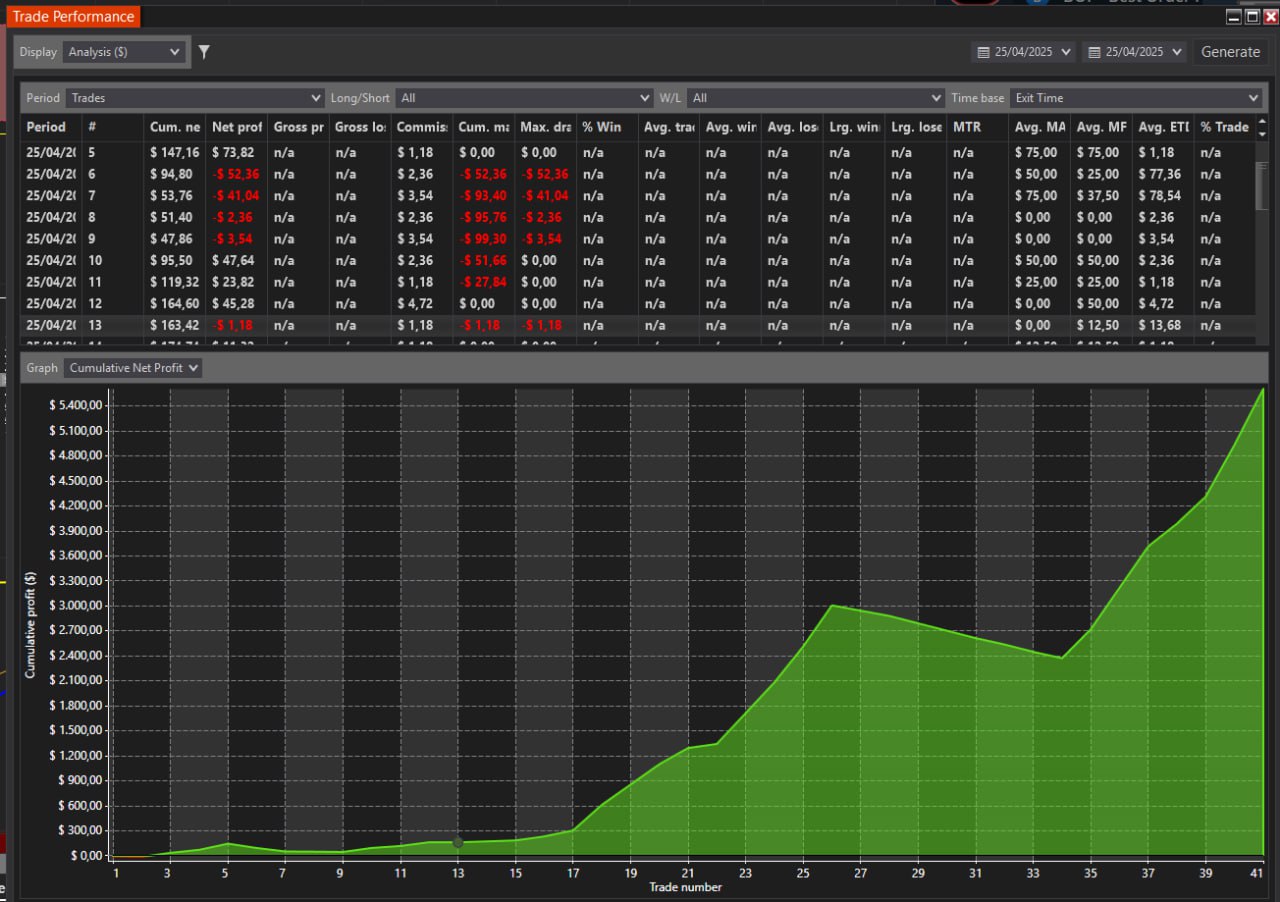
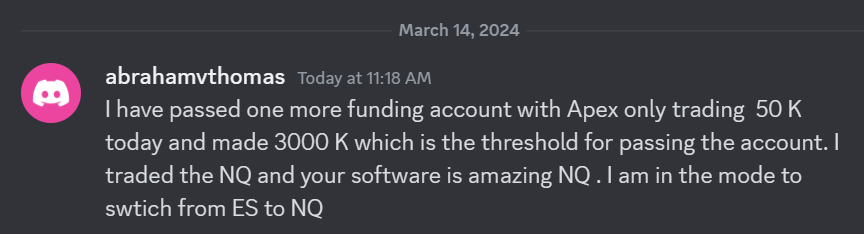 I have passed one more funding account with Apex Trading today and made $3,000, which is the threshold for passing the account. I traded NQ, and the Bestorderflow indicators are excellent for passing props.