List of well-known errors and problems
Not all errors related to BOF indicators or connections are caused by BOF indicators. They may express what BOF indicators or BOF connection attempts are intended to do, but the NinjaTrader platform is unable to perform or complete the task. The problem is in the NinjaTrader platform.
You may encounter data hiccups and inconsistencies from Rithmic, which can cause errors. On some of these errors, it is mentioned BOF indicators. That does not mean there is a problem with BOF indicators; it means that BOF indicators cannot run well until you resolve data hiccups and inconsistencies from Rithmic. That is normal and may happen a couple of times a week.
There are two types of support: FREE and PAID support.
Please be familiar with the conditions to qualify and to disqualify from FREE support.
If you want to get rid of all errors downright, please use the Clean NT8 platform Installation
NO LICENCE FOUND OR LICENCE EXPIRED
- You forgot to start NinjaTrader as Administrator. Set the NinjaTrader app/program shortcut to always start as Administrator.
- Check the Machine ID entered on your Account.
- Check that your NinjaTrader Username on your Account page is entered correctly. NinjaTrader Username is located under Machine ID
- Gmail and Apple logins are PROHIBITED. Must log in to the NT platform using only a "normal" Username. Google-generated logins are prohibited.
- Request BOF Admin to correct the NinjaTrader Username on your account page via Direct message on the Discord channel.
MBO ERRORS and MISTAKES
1) The indicator files and connection disappear after working for a day before:
- It is deleted by antivirus and online protection software or Windows Defender. Whitelist NinjaTrader or uninstall all security apps/software.
2) Panic error:
- Restart NT as administrator. Do not believe the word Panic in the error message.
- Select the Ninjatrader app, right-click, and then select Properties/Advanced. Check the "Start as Administrator " checkbox.
3) Getting error " No valid licence" - please check Username and Machine ID entered on the account on this website correctly, exactly as shown in NinjaTrader / Help/ About and Machine ID window.
INDICATORS DO NOT WORK AFTER INSTALLATION
(No errors about Licence)
- Installation files removed by Antivirus. Whitelist files and folders.
- Not whitelisted on ALL antivirus(s), including Windows Defender
- Installation files do not work because they contain duplicate files from other third-party indicators or scripts. Remove duplicate files.
- NinjaTrader is installed on OneDrive—big mistake.
- NinjaTrader synchronizes files with OneDrive. Clear any leftover OneDrive cache by opening the Run dialog (Win + R), typing %localappdata% and removing any OneDrive folders.
- Reinstall NinjaTrader on the C drive and the My Documents folder instead of on OneDrive.
UNHANDLED EXCEPTION ERROR
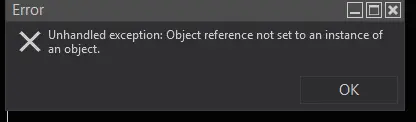
This error is a platform issue related to NT8. NT8 does not know the cause of this error.
There are two reasons for this error:
- Installed indicators or installed add-ons.
- A problem with the NT8 User Interface
If it is a problem with the User Interface, we can try to fix it this way:
1) Let's say you are working on a Workspace named "Name1"
2) Add a new workspace and name it "Empty" - with no charts in it.
3) Close workspace "Name1"
4) Close NT8 with open Workspace "Empty"
5) Restart NT8 with Workspace "Empty"
6) Open Workspace "Name1"
7) Close workspace "Empty"
Sometimes you need to do it 2 times.
If it does not help, and you have other indicators installed on the charts in the Workspace "Name1" that create a problem.
If some indicators and add-ons cause the problem:
- close all indicators on every chart in the workspace,
- Close NT8
- Clean NT platform with NT Optimizer
- Open NT8 with an Empty workspace (no charts) and add a new chart,
- Add only one BOF indicator at a time on the chart.
- Save it to a new Workspace "Name2"
- Notice what actions precede errors and screenshot them. Notice the error in the Control Center Logs.
General recommendations:
- Keep one instrument on one window. If you use a second instrument, use a separate window. Instead of adding new instruments with tabs, keep instruments separately in their own window. This method makes your CPU work more efficiently.
- Clean NT8 at least 1 or 2 times a week with NT Optimizer.
NO BOF MBO CONNECTION ON THE CONNECTION LIST
the same as above and
- Installation files removed by Antivirus
- Installation files do not work due to duplicate files from other third-party indicators or scripts. Remove Duplicate files.
ERROR ON EXECUTING DB.
SQLITEEXCEPTION. UNIQUE CONSTANT FAILED
Error on executing DB command: code=

Posible solutions:
1) Rename the database:
- Shutdown NinjaTrader
- Open the Documents > NinjaTrader 8 > db folder
- Right-click on NinjaTrader.sqlite and select "Rename"
- Rename the file 'OLDNinjaTrader.sqlite'
- Finally, restart NinjaTrader
- Unfortunately, the following items stored in the old database will be lost: Trading Hours templates, Instrument Lists / Custom Instruments, historical trade execution data, and saved Strategy Analyzer backtest results
2) Repair Database
Steps for Repairing the Database:
- Disconnect all active connections from your NinjaTrader platform.
- From the NinjaTrader Control Center window, go to Tools > Database Management.
- Select the "Repair DB" option.
- Click the "Repair" button to begin the process. - Restart NinjaTrader
When to Consider Resetting the Database:
If database issues, such as missing trade history, chart data discrepancies, or performance slowdowns, aren’t resolved by repair, resetting the database can help.
Warning: A database reset will permanently erase all historical trade data (orders and executions). Please ensure that you back up any important information before proceeding.
3) Reset Database
- Tools
- Database management
- Reset
- Check Orders, Executions, Trade Performance
- Run Reset
- Restart NT8
- Reconnect
Other similar:
UNHANDLED EXCEPTION ERROR (2)
1) Unhandled Exception error message:
"This process cannot access the file c:\users\Documents\NinjaTrader8\_Workspace.xml or UI.xml files because it is being used by another process "
This error indicates that something on Windows is preventing NinjaTrader from accessing its files. Or Windows settings, or Antivirus settings, or folder settings. And it is not a problem with the NinjaTrader Platform.
Here is how to fix the Unhandled Exception Error
PROBLEMS CAUSED BY THE NINJATRADER PLATFORM?
- Review the error details in NinjaTrader's Log tab on the NinjaTrader Administrative window. If the error message does not mention BOF indicators, there is no reason to contact the BOF Administrator for help.
If the error description does not include Best orderflow indicators' names, there is no reason to contact BestOrderflow Admin.
- Please connect to the NinjaTrader platform help, and submit your ticket for assistance to them.
- If the error mentions other 3-rd party indicators, connect directly to the source of that indicator.
PROBLEMS CAUSED BY DATA CONNECTION?
Does the Data connection cause the problem?
- Connection subscription is absent for Data Level 1 ( Aggressive by Market), Data Level 2 ( Passive resting limit orders), and Data Level 3( Market By Order MBO data)?
- Connection subscription expired?
- Data connected with hickups and errors?. Please clean up with NToptomizer and reload F5 NinjaScript Reload, Data Reload.
- Close all charts and all workspaces. All green and all gray icon workspaces.,
- Create a new single chart on 1 -1-second timeframe ES or NQ with no indicators on it.,
- Place some fundamental indicators, such as volume, and observe if candles are moving and if the volume indicator is functioning properly.
- Test connections and subscriptions for data that are not expired.,
Test data level 1 connection:
- Admin window/ New / Basic Entry/ Select instrument - ES and account = must see ask and bids numbers changing. - If yes, you havea Data level 1 connection,
Test data level 2 connection:
- Admin window/ New/ SuperDom / Select Instrument ES - if it is running, that means you have a Data level 2 connection,
- You may not have SuperDom, then use,
- New / Level 2 - Check ES and verify if numbers are running; this indicates a Data Level 2 connection.
SLOW CHARTS?
- Data Connection Server: Please connect to the closest server possible. On the Connection, select Rithmic Paper Trading (Chicago) if you are in the United States. If you are in another country, select the Rithmic Paper Trading server name that is closer to your geographic location.
- Your computer's time is out of synchronization.
- Remove Duplicate Files. Uninstall all other indicators.
- Follow the Perfect Installation steps
PROBLEMS CAUSED BY OTHER INDICATORS:
The problem is caused by Other third-party indicators (not BOF indicators) built by amateurs, which are not properly constructed, resulting in lagging and slow charts.
Before connecting with the BOF Admin to request assistance with your problem, please answer every question on the Troubleshooting Checklist.
Skipping the checklist will cause Admin to remove you from his priority list, and next time you may get a significant delay in assistance or be deprived of support forever. BOF Admin does not have unlimited time to review the checklist; you should do so at your own pace and ensure you are fully prepared.
TROUBLESHOOTING CHECKLIST
Could not find a solution for an error or a problem, and don't know what to do? Please follow the Troubleshooting Checklist. Recommendations on this checklist are great for tuning your NT platform and eliminating many errors. It is recommended that you use this checklist regularly to keep your NT in good condition.
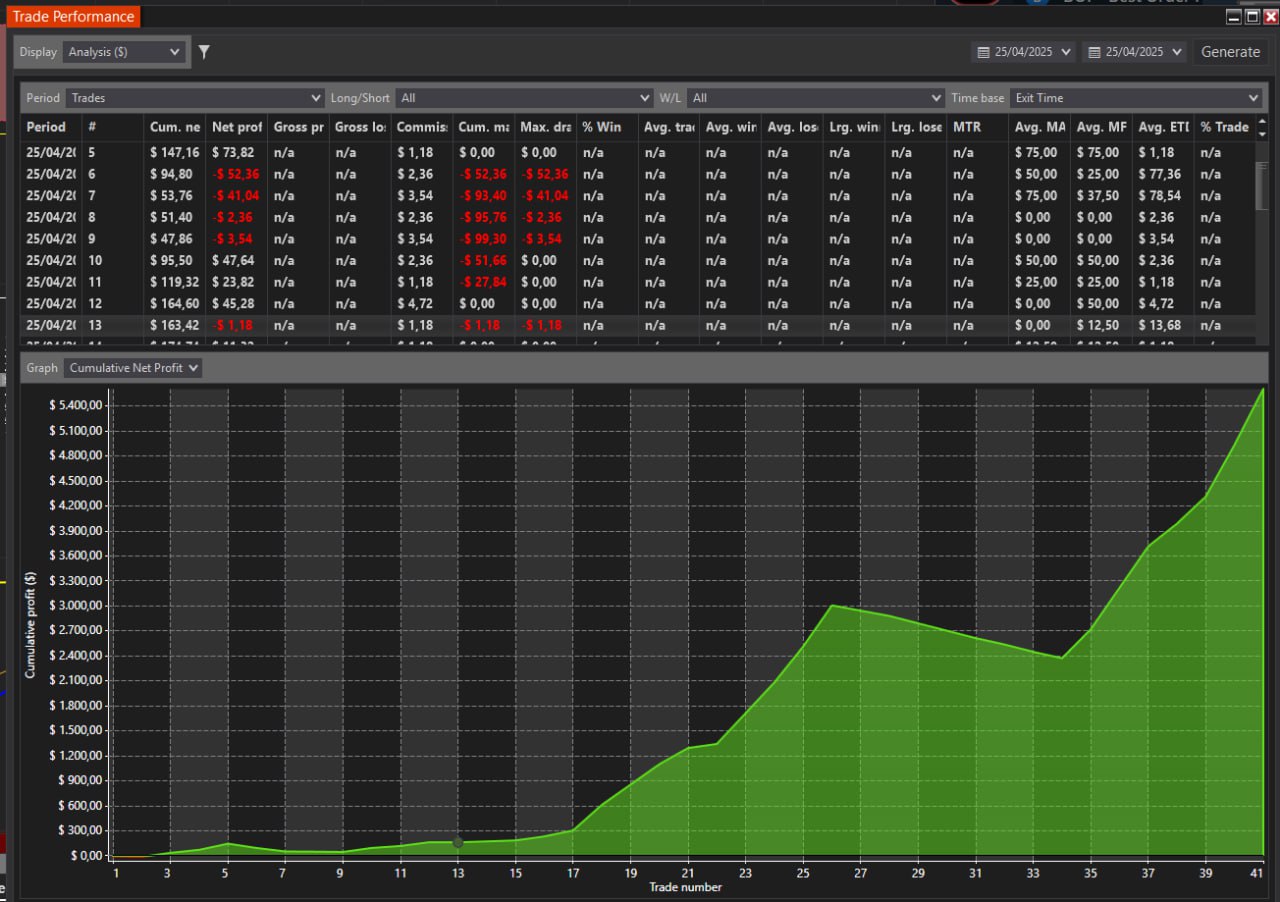
 I have passed one more funding account with Apex Trading today and made $3,000, which is the threshold for passing the account. I traded NQ, and the Bestorderflow indicators are excellent for passing props.